Guides · Seasonal emails
How do I make a Christmas newsletter or email?
Start from a design that leads with a big picture, swap that picture for a Christmas one, and write a short, warm message: what you'd like to say this year, your holiday opening hours, and a thank-you. Send each person their own copy with their name in it, in the first half of December. Below are three free Christmas banners you can use, and the steps in Groupmail 7.
Three free Christmas banners
We made these for our own Christmas emails, and you're welcome to use them in yours. Each is 1200 × 600 pixels, which fills a standard 600-pixel-wide email sharply.
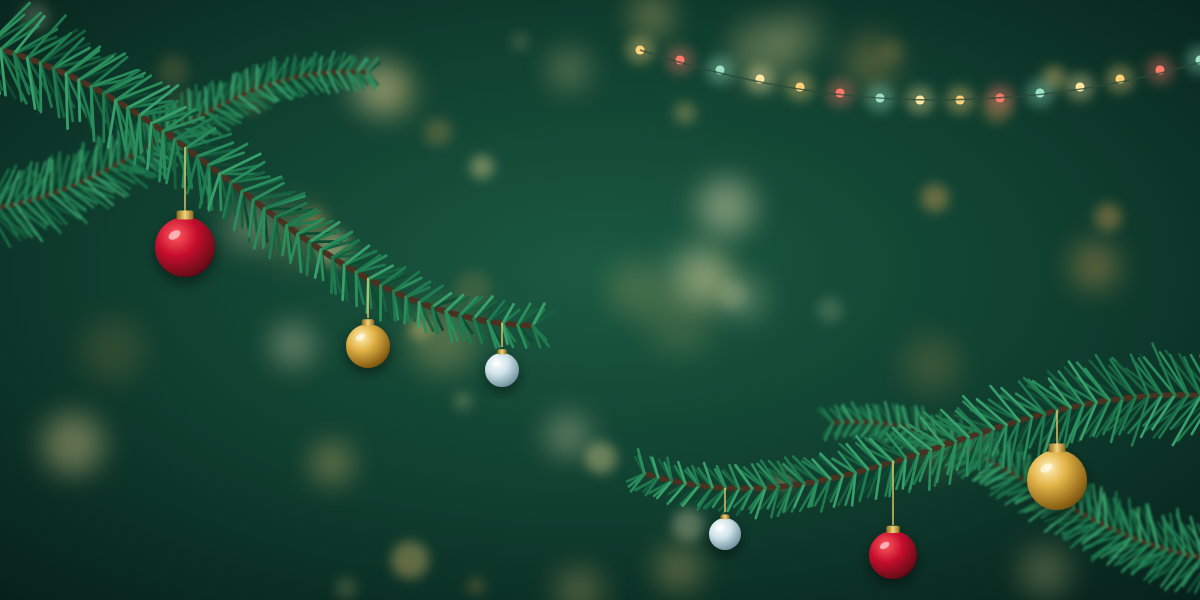 Evergreen: pine branches and baubles. Download the full-size picture.
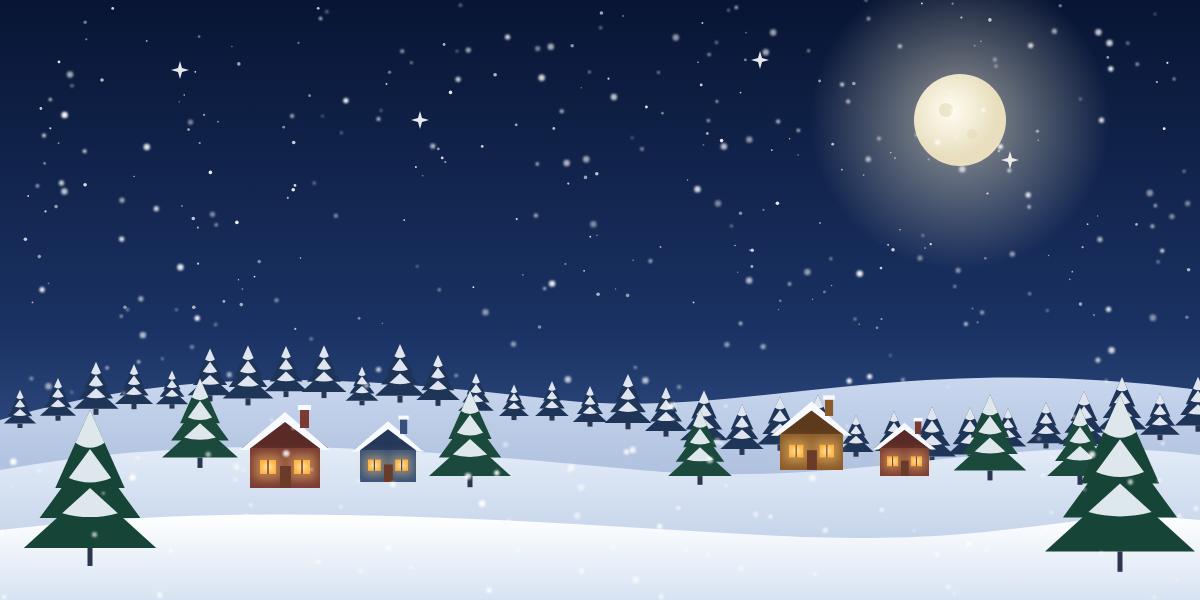 Winter night: a snowy village. Download the full-size picture.
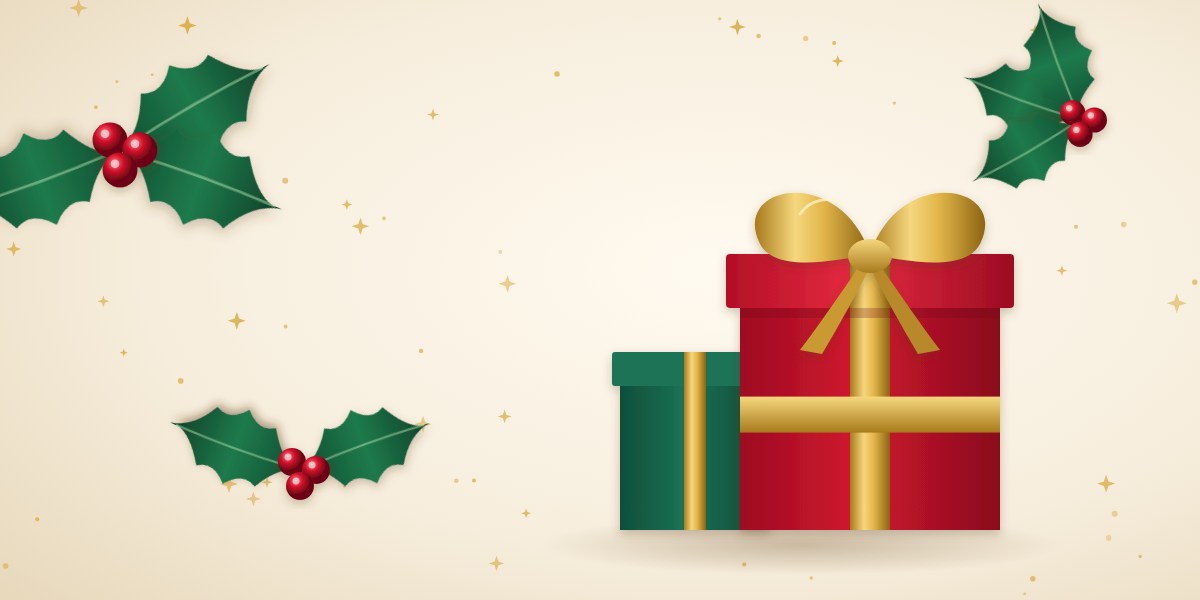 Gift and holly. Download the full-size picture.
Which design to start from
Groupmail 7 comes with thirteen starter designs. Three suit a Christmas email:
| Starter | Best for | Width choice |
|---|---|---|
| Flyer | A picture-led greeting with one short message | 600, 700 or 740 |
| Simple Editorial | A Christmas newsletter with a few short stories | 600, 700 or 740 |
| Bulletin | A newsletter with several items in two columns | 600, 700 or 740 |
There's no ready-made Christmas template in Groupmail 7. A starter plus a Christmas picture and colour gives you one in a few minutes, and it's yours to reuse every year.
Make it in Groupmail 7
- Select Templates in the sidebar, or open the + Write menu and choose Start from template….
- Select the preview of Flyer, keep Email width at 600, then select Use this starter. (In Simple Editorial and Bulletin the pictures sit lower down, so replace the one you want in the same way.)
- Select the picture at the top, then select Replace image and choose one of the banners. A picture at the top that's 480 pixels or wider becomes a full-width banner.
- With the picture still selected, open Alt text and width, describe it in Alt text, for example "Snowy village at night", and select Apply. Some readers see this before the picture loads.
- Open Email style ▾ above your email. Under Accent, select Custom…, enter a Christmas colour, such as deep green
#0F3D2Eor berry red#C8102E, and select Apply or press Enter. - Write your message, starting with
Hi {{first_name}},so each person sees their own name. - Send yourself a test, and open it on your computer and your phone.
- Select Send or schedule…, check the review, and send now or schedule it.
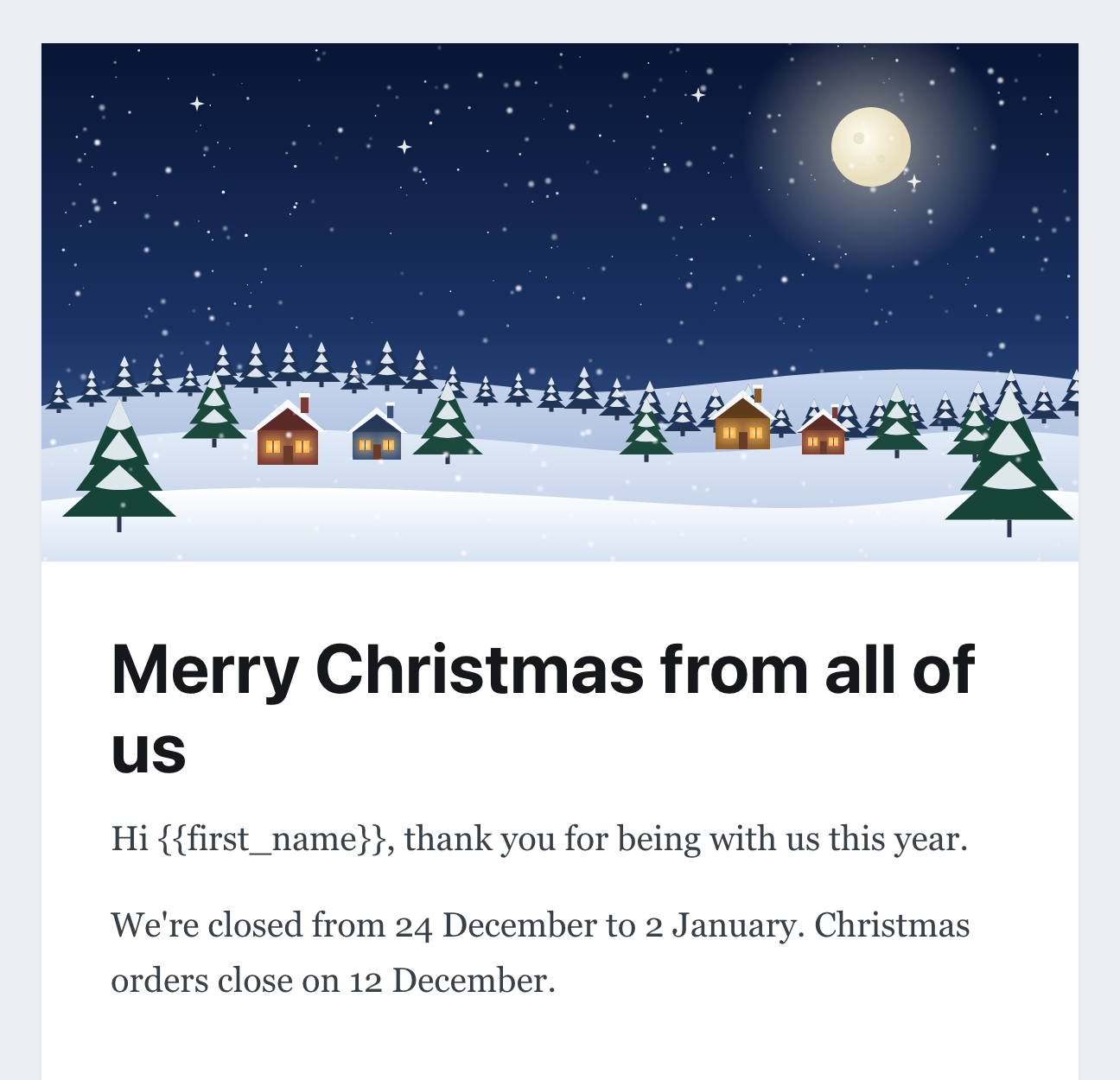 Illustration from a fictional Christmas draft in Groupmail 7, with the Winter night banner.
Groupmail resizes big pictures when it sends, so the email stays quick to load. If you schedule it, keep Groupmail open and the computer awake at the time you choose.
Let an AI assistant write it
A short brief gets you a good first draft from Claude, ChatGPT or Codex:
Write a Christmas email to our customers, under 150 words.
Thank them for this year, mention one highlight: [your highlight].
Our holiday hours: closed 24 December to 2 January.
Warm and plain, no clichés, no exclamation marks.
Start with "Hi {{first_name}}," and sign off from [your name].
Give me three subject lines.
Read it and change anything that doesn't sound like you. With computer use switched on, Claude or Codex can also put it into the starter, swap the picture and send you a test in Groupmail 7. You still approve the review before it's scheduled. See How do I write and send a newsletter with AI?.
When to send it
These are suggestions; you know your readers best.
- The first half of December suits most greetings: before people leave for the holidays.
- Holiday hours or order deadlines: give people at least a week's notice before the order deadline or your first closed day, whichever comes first.
- A weekday morning in your readers' time zone is a sensible default.
- Avoid Christmas Day and New Year's Day, when many people aren't reading work email.
Before you send to a big list
- For a Christmas newsletter to customers, send through a sending service such as SMTP2GO, or your own mail server, rather than your everyday Microsoft 365 or Gmail mailbox. Your mailbox is fine for a greeting to a few dozen people you work with.
- Keep the unsubscribe link in the email.
- Check your sending limits if you send from Microsoft 365 or Gmail.
What Groupmail 7 can't do
- There's no Christmas template built in. You start from Flyer, Simple Editorial or Bulletin.
- It doesn't add snow or other animations. An animated GIF is sent as it is, but some email apps show only its first frame.
- It can't stop an email app blocking pictures. Some readers see the alt text until they choose to show pictures.
Questions people ask
How do I make a Christmas email template?
Start from a picture-led design such as Flyer, replace the top picture with a Christmas banner, set a Christmas accent colour and save your wording. In Groupmail 7, use Copy as draft on last year's email to reuse it.
What should I write in a Christmas email to customers?
A thank-you for the year, one highlight or piece of news, your holiday opening hours and any order deadlines, and a short warm sign-off. Under 150 words is plenty.
When should I send a Christmas newsletter?
As a suggestion, in the first half of December, on a weekday morning. Give at least a week's notice before your order deadline or first closed day, whichever comes first.
Can I use these Christmas images in my own emails?
Yes. The three banners on this page are free to use in your own emails.
What size should a Christmas email banner be?
Use a picture at least 1200 pixels wide for a standard 600-pixel email. Groupmail 7 resizes a full-width banner to the email's width when it sends, so the email stays quick to load.
Can AI write my Christmas newsletter?
Yes. Give Claude, ChatGPT or Codex a short brief with your news, hours and tone, then edit what it writes so it sounds like you.
Try Groupmail 7 free for 30 days.
No card needed. Then $599 once, with a 30-day money-back guarantee.