Guides · AI and email campaigns
How do I write and send a newsletter with AI?
Ask an AI assistant such as Claude, ChatGPT or Codex to write the newsletter from a short brief. Then let it put the email and your list into your email software, approve the review yourself, and only then let it schedule the send. With Groupmail 7 on your computer, the assistant does the setting up and Groupmail sends each person their own copy from your sending account.
The short version
| Step | Who | Time |
|---|---|---|
| 1. Write a short brief | You | 2 minutes |
| 2. Draft the newsletter | AI | 1 minute |
| 3. Edit and approve the words | You | 5–10 minutes |
| 4. Prepare and import the list | AI | 5 minutes |
| 5. Set up the email and send you a test | AI, using Groupmail 7 | 5 minutes |
| 6. Check the test and the review, then schedule | You approve, AI schedules | 2 minutes |
| 7. Send at the scheduled time | Groupmail 7 | Automatic, while it's open |
Before you start
- An AI assistant that can use apps on your computer.
- Claude: the Claude desktop app on Mac (macOS 14 or later) or Windows, on a Pro plan ($20 a month), Max or Ultra. Switch on computer use in the app's settings. Anthropic calls it a preview.
- Codex: install and switch on Computer Use in the Codex app, on Mac or Windows. It comes with ChatGPT plans such as Plus ($20 a month), with limited use; on Business and Enterprise, your admin controls it. It's available in OpenAI's supported regions, which include the UK, Ireland and the rest of the EEA since June 2026.
- On a Mac, allow the app in System Settings → Privacy & Security, under Accessibility and Screen Recording.
- Ordinary ChatGPT in a browser can write the newsletter, but it can't use Groupmail 7 for you.
- Groupmail 7 on an Apple silicon Mac or a Windows computer. The free trial works.
- A sending account in Groupmail 7. For a newsletter, use a sending service such as SMTP2GO, or your own mail server. Your Microsoft 365 or Gmail address is fine for a small group of people you work with. See How to set up a sending account.
- Costs. Groupmail 7 is $599 once. Your AI plan and any sending service are separate.
- Privacy. Your assistant sends screenshots of what it works on, including names and addresses on screen, to its AI company for processing. Anthropic's own guidance advises against letting Claude use apps that show other people's personal information. If you follow it, use Claude to write the email only, and do the Groupmail steps yourself.
If you only want the AI to write, skip to step 3 and do the rest yourself in your email software.
1. Write a short brief
Give the AI what only you know. For example:
Write our November customer newsletter.
Audience: our customers in the "Customers" group.
Include: the new opening hours, the Christmas order deadline (12 December),
and a short tip about [topic]. Keep it under 250 words, friendly, no hype.
Start with "Hi {{first_name}}," and end with my name.
Give me three subject lines to choose from.
{{first_name}} is Groupmail's merge field. Groupmail puts each person's first name there when it sends.
2. Let the AI draft it
The AI returns the subject lines and the email. Ask for changes in plain words ("shorter", "less formal", "move the deadline to the top") until it reads like you.
3. Edit and approve the words
Read it as your customers will. Check names, dates, prices and links yourself. AI assistants can be confidently wrong about facts. This is the most important step, and it's yours.
4. Prepare and import the list
Export your contacts from your spreadsheet or CRM, and ask the AI to tidy the file (the steps are in How do you mail merge from Excel to email?):
- one column each for email, first name and last name;
- duplicates and obviously broken addresses removed;
- saved as CSV UTF-8.
Then ask it to import the file into Groupmail 7 and make a group, such as "November newsletter". When it sends, Groupmail checks your unsubscribes and the exclusions for the chosen groups.
5. Set up the email and send a test
Ask the assistant to work in Groupmail 7:
In Groupmail 7: create a new message with this subject and body,
use the design "[design name]", choose the group "November newsletter",
send from my SMTP2GO account, and send a test to me.
Don't schedule anything yet.
 Illustration from a fictional draft in Groupmail 7.
Open the test in your own inbox, on your computer and your phone. Check the greeting, the links and the unsubscribe link.
6. Approve the review, then schedule
Ask the assistant to open Send or schedule… and stop at the review. The review shows the subject, the group, how many people, the sending account and the pace.
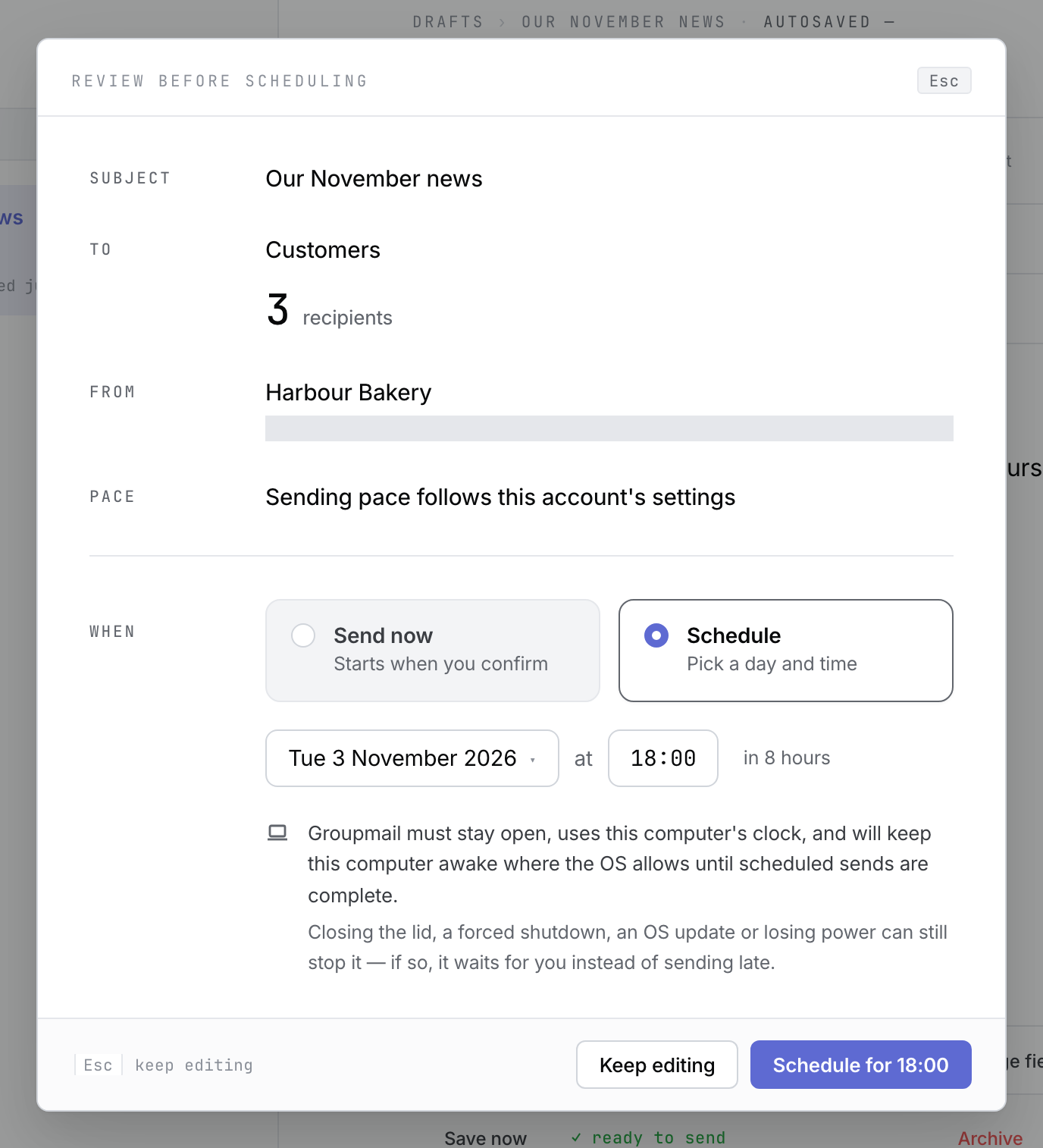 Illustration from a fictional draft in Groupmail 7; the sending address is masked. This is the screen you approve before anything is scheduled.
When it's right, tell the assistant the day and time, and it selects Schedule for that time. The message moves to Scheduled.
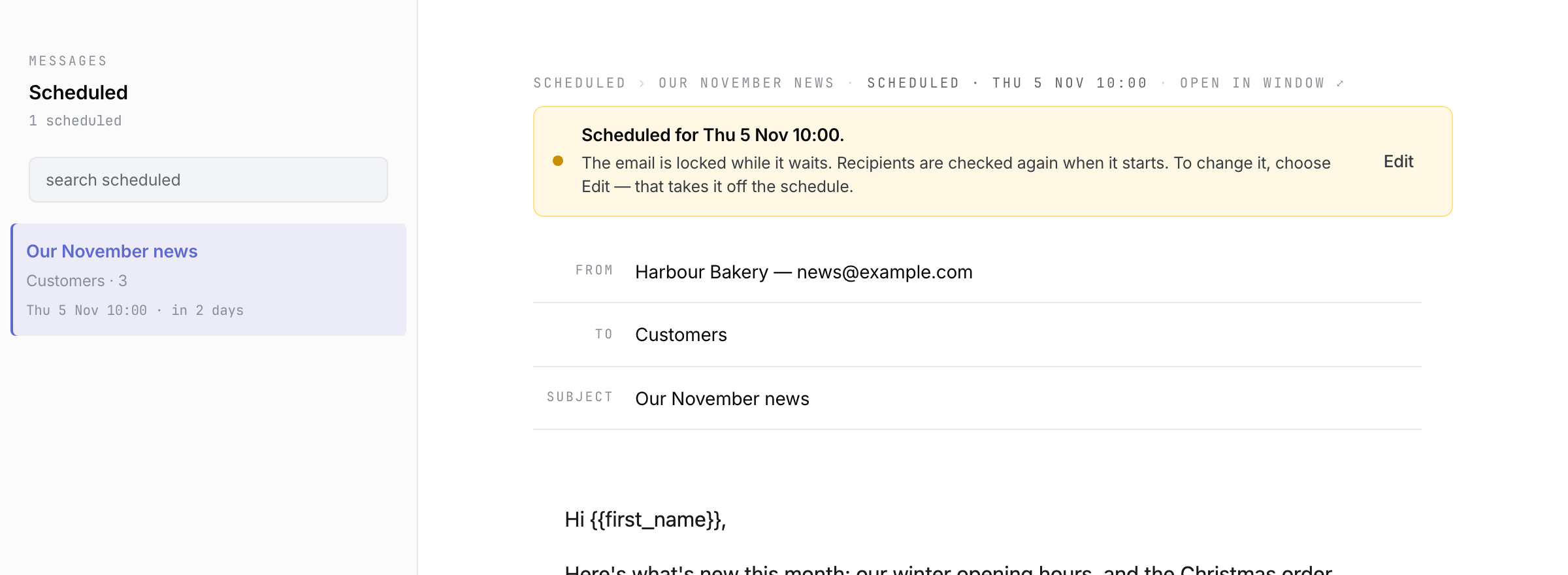 Illustration from a fictional newsletter waiting in Scheduled.
7. Leave Groupmail open at send time
Groupmail sends from your computer, so it must be open and the computer awake at the scheduled time (How to schedule a message). If you close it, Groupmail warns you first. If a send is missed, it never goes out later on its own: you choose Send now, Reschedule or Cancel schedule.
Afterwards, replies and bounces come back to your sending account. If you connect an incoming mailbox, Groupmail's Inbox can show them: replies with SMTP2GO, and replies and bounces with your own mail server. It isn't available with Gmail or Microsoft sign-in. The AI can draft replies for you to approve.
What Groupmail 7 can't do
- It has no AI of its own. You use your own assistant and plan.
- It can't send while it's closed, or while the computer is asleep or off.
- It doesn't host sign-up forms or a web archive of your newsletters.
- It can't add a one-click unsubscribe when it sends through Microsoft or Google sign-in. Use SMTP2GO for marketing email.
Questions people ask
Can ChatGPT write a newsletter?
Yes. Give it a short brief with the audience, the news and the length, and edit what it writes. ChatGPT can't send a personal newsletter to a whole list on its own; you need email software for that.
How do I send a newsletter written by AI?
Paste it into your email software, choose your list, send yourself a test, check the review and schedule it. Or let Claude or Codex, with computer use switched on, do those steps in Groupmail 7, and approve the review before it schedules.
Which AI is best for writing newsletters?
Claude, ChatGPT and Gemini all write good first drafts from a clear brief. The brief and your edit matter more than which assistant you use.
Can Claude or Codex send emails for me?
Yes, with computer use switched on: Claude's desktop app on a Pro plan ($20 a month), Max or Ultra, or Computer Use in the Codex app. They set up the send in Groupmail 7's normal screens, you approve the review, and Groupmail 7 sends.
Will people know it was written by AI?
Editing helps most. Keep it short, specific and in your own voice, and use their name.
How long does it take?
As a rough estimate, about half an hour the first time, most of it reading and checking. It gets quicker once your brief and design are set.
Try Groupmail 7 free for 30 days.
No card needed. Then $599 once, with a 30-day money-back guarantee.